 DBA Import SNX File SNX Importer form
Administration DBA Import SNX File SNX Importer form
Once you have created your import data XML file(s), you can import your data into N4 using the SNX Importer form.
When importing data using SNX, log in at the appropriate scope level. To import:
Operator: Log in at the global scope level.
Topology: Log in at the operator scope level.
Reference or Working data: Log in at the facility or yard scope level.
See Select a scope level (on page 1) for instructions.
To import new or updated data:
Select one of the following radio buttons:
Process Elements (Single Thread / Elements Processed in Order): Processes the elements in the order in which they appear in the file. Therefore, the data in the file must be listed in the correct order per the data dependencies. For example, routing points must appear in the file before carrier itineraries.
Use for files that contain more than one type of entity, especially if dependent entities exist in the file. Typically used for reference data and most working data files.
Process File (Multiple Threads / Elements Not Processed in Order): Processes the elements in the file in random order.
Use for files that contain only one type of entity, such as units, after all of the other dependent data has been imported.
The Open dialog box displays.
In the Open dialog box, select the XML data file and click Open.
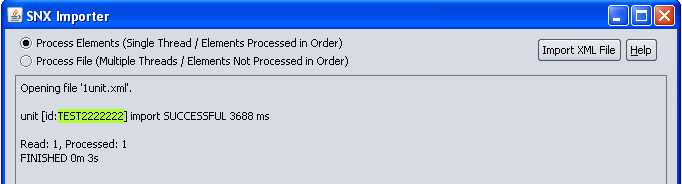
As each record is sent and processed by the server, N4 logs it in the SNX Importer form as SUCCESSFUL or FAILED. The following illustrates an example successful import for one unit entity:
The following illustrates an example failed import for one unit entity:
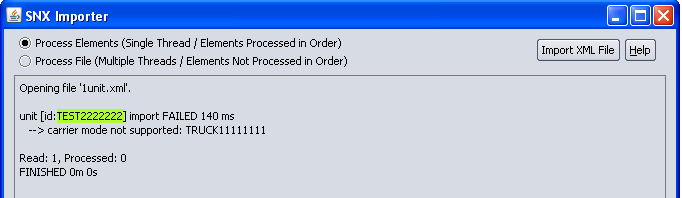
N4 writes any failed records to an {original filename}_errors.xml in the same folder where the import data XML file is located. You can edit the import errors XML file and import it again. For more information, see Fix errors and re-import data (on page 1).
We recommend that you import a small test file the first time you import data.
If you want to purge data in N4 prior to importing new data again, use the Purge Working Data! option in the Set-up Database view (on page 1).
Use caution when using the Purge Working Data! option in the Set-up Database view. This option deletes entities that are not included in the import functionality, such as gate transaction, EDI interchanges and batches. In addition, this option does not delete some reference data entities included in the import functionality, such as line operators.